Viewing Responses
Here’s what to do:
1. Read the text
2. Select ‘Mark Complete’
There are a number of different ways to view the forms responses.
From within the Forms Module
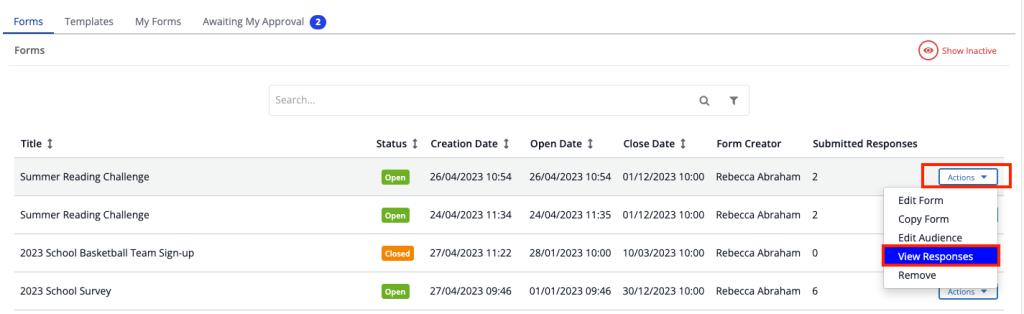
From the Forms Dashboard, click the Actions button on the right side of the form required, and select View Responses
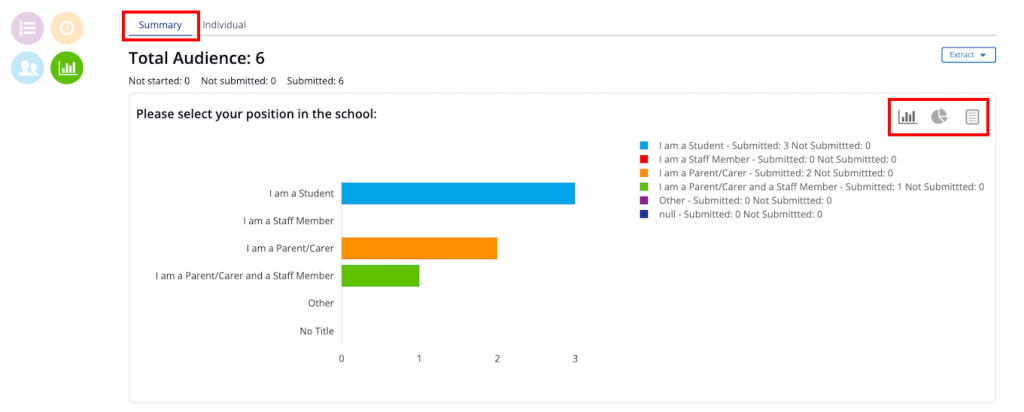
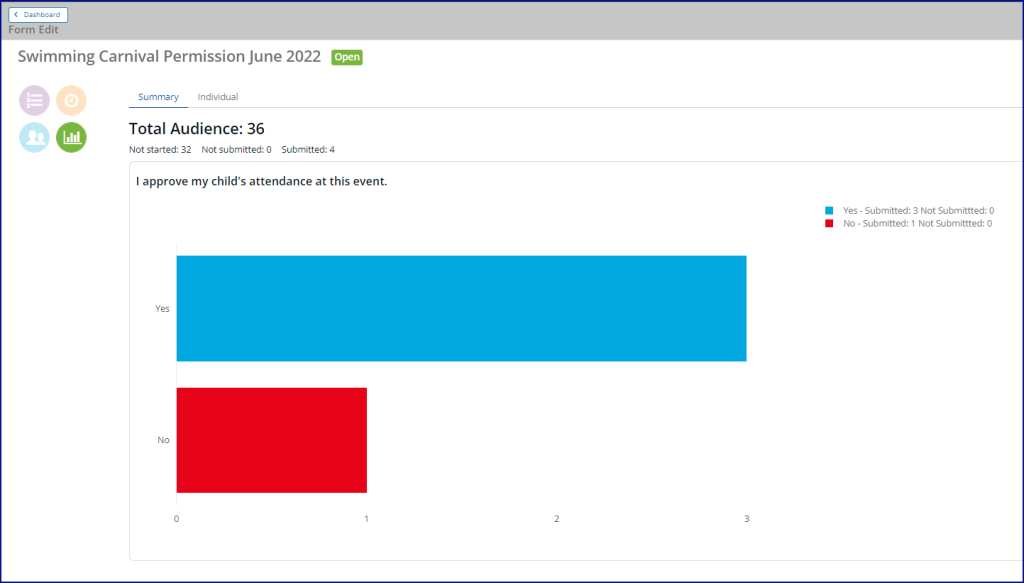
The Summary tab will show graphs with all responses grouped together. You can toggle between the icons in the top right corner of the question block to see a pie chart or a list.
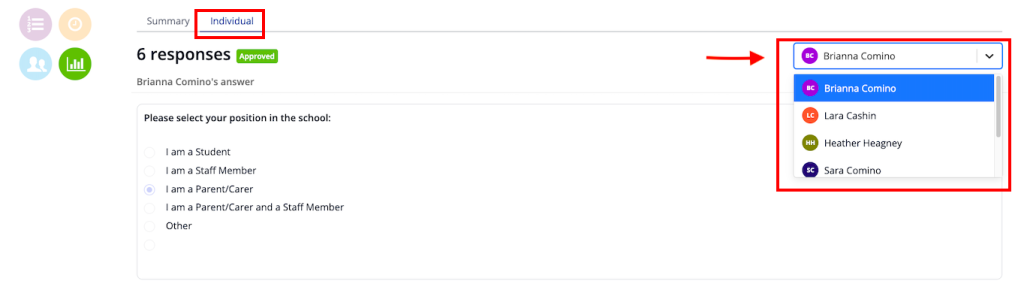
The Individual tab will show one response at a time. Select the Community Member’s name from the dropdown at the top right
From Action Required
An Action Item is provided to Form Creators and is updated in real time as Responses are received.
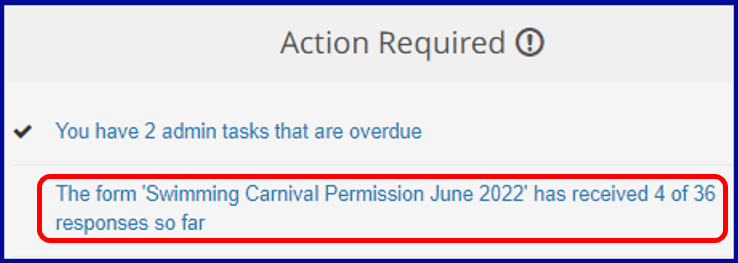
Clicking on this Action Item takes the user to the Response Summary screen for that Form.
From a Community Member’s Profile
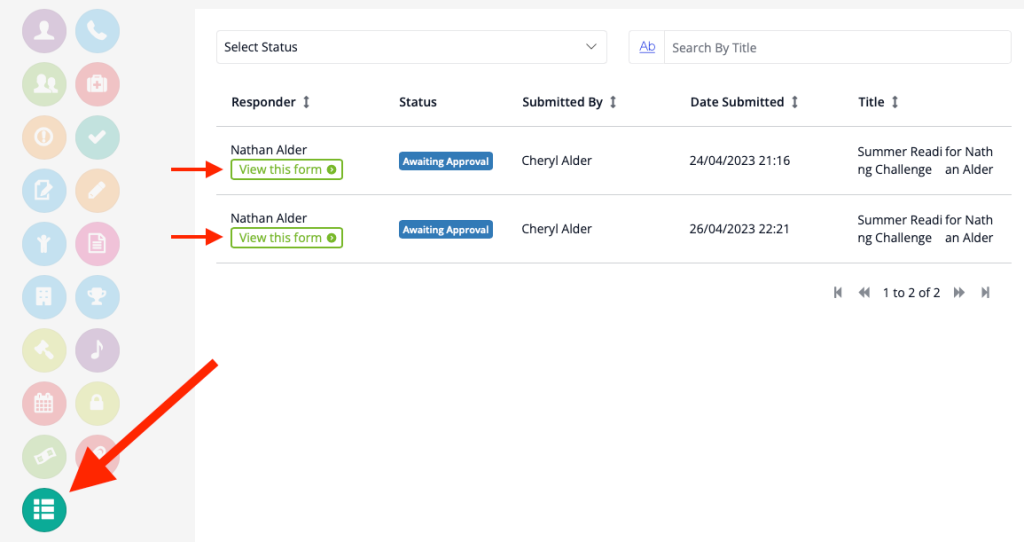
Search for the Community Member profile that the response relates to, then select the Forms button. Responses that you can access will have the ‘View this form’ button which will take you to that particular response.
From a Calendar Event
Navigate to Menu > Calendar Events > Search Calendar Events and find the relevant Calendar Event.
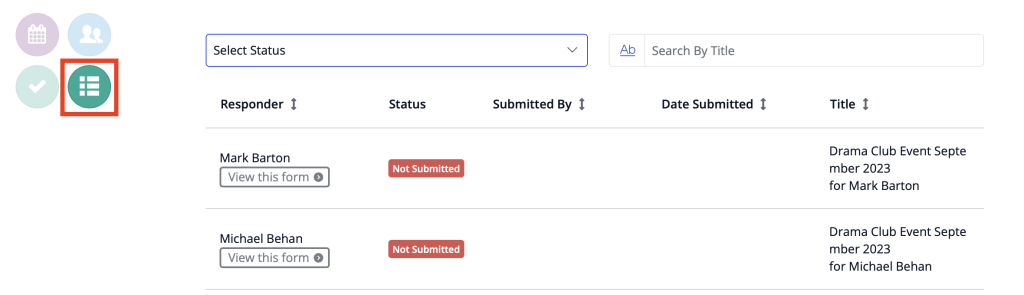
Click on the Forms button and you will see all responses that relate to the Calendar Event.
From an Extract
From the Summary page of the Responses section, you can select to extract the responses graphically as a PDF, or tabulated in an Excel spreadsheet.

A Graphical Extract will print the Response Summary screen as you see it. You can change the graph types for each question individually to create the report you want.
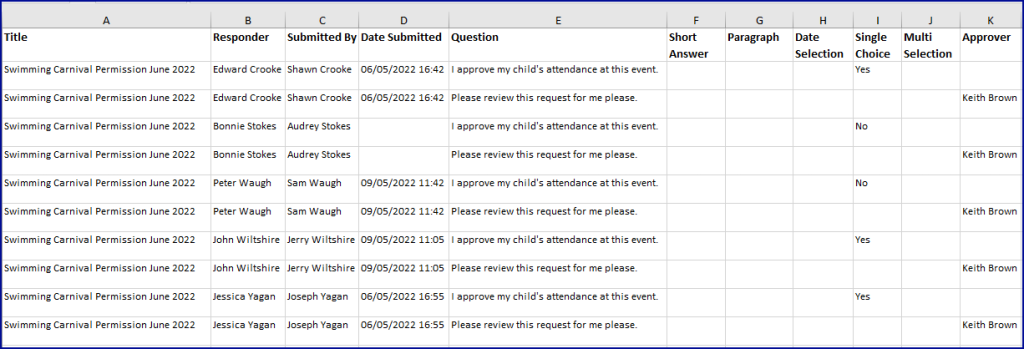
A Tabulated Extract will export an Excel file with all responses.