Making Changes to Your Form
Here’s what to do:
1. Read the text
2. Select ‘Mark Complete’
When amending a Form, the actions required are dictated by whether the Form has been Published and viewed by an Audience Member.
Changing an Unpublished Form
1. Navigate to the Form requiring changes. If it’s unpublished it will have a Status of Draft.
2. Click ‘Actions‘.
3. Click ‘Edit Form‘ and make your necessary changes.

Changing a Published Form that has not been viewed
If your form has been published, but not viewed by any audience member, the form can be changed:
1. Navigate to the Form requiring the amendment. The status will either be Published or Open.
2. Click ‘Actions‘.
3. Select ‘Edit Form‘.

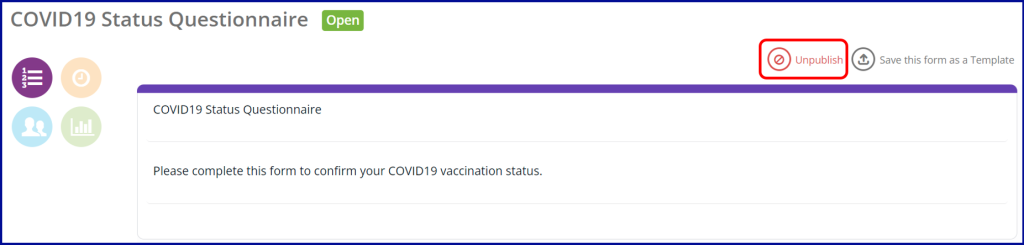
4. Select Unpublish.
5. Proceed in the same way as changing an Unpublished Form (above).
6. If the Unpublish button is not active, it means an Audience Member has already viewed the Form and the below instructions for Changing a viewed Published Form need to be followed.
Changing a Published Form that has been viewed
If your form has been published and viewed by an audience member, even if they have not submitted a response, the option to Unpublish will not be available.
The Published Form will need to be copied, and the existing Form should be withdrawn.
1. Click Actions
2. Select Copy Form
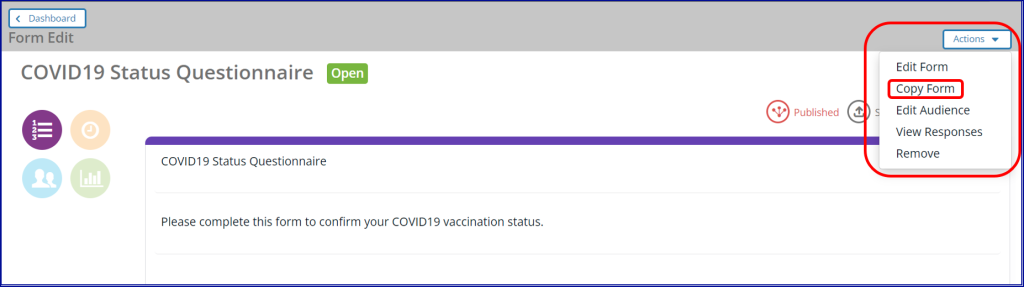
3. Name the new Form and click Save (you can use the same name for the new Form as the current Form).
4. You now have a copy of your existing Form in Draft Status that you can edit to incorporate your required amendments.
5. Work through the Draft Form as you did in creating your current Form, including adding the Audience.

The last step is to click Actions for the original, published Form and select Remove.

Please note that if any responses were already made by an audience member, they will need to be completed again on the new form.
ℹ️ You can add or remove Audience Members at any time, even when the form is active and has started to receive responses.