Responding to a Form
Here’s what to do:
1. Read the text
2. Select ‘Mark Complete’
Let’s take a look at what the experience looks like for an audience member.
Accessing a Form
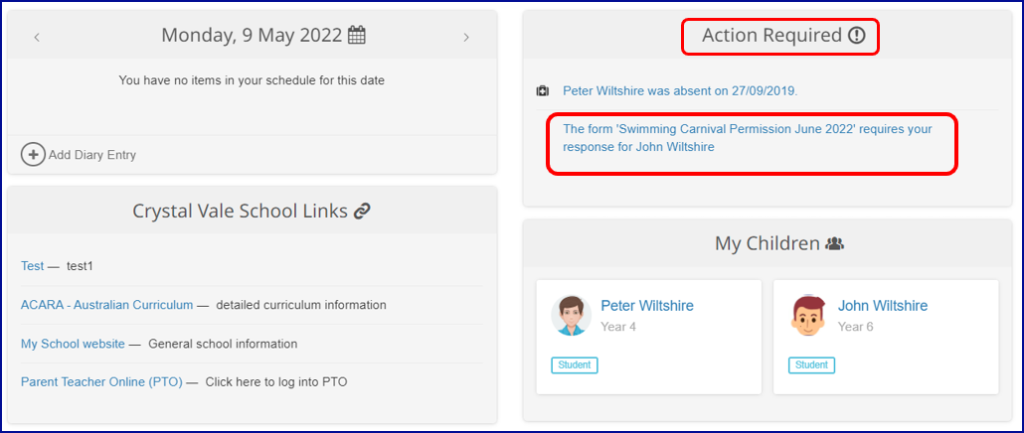
Community Members who are added as an Audience Member to a Form will receive an Action Required advice on their Dashboard.
Select the Action Item to view the form.
Responding
The user will then enter the Form and can complete the questions and submit their Response.
Form Responses are automatically saved, but not finalised until Submitted.
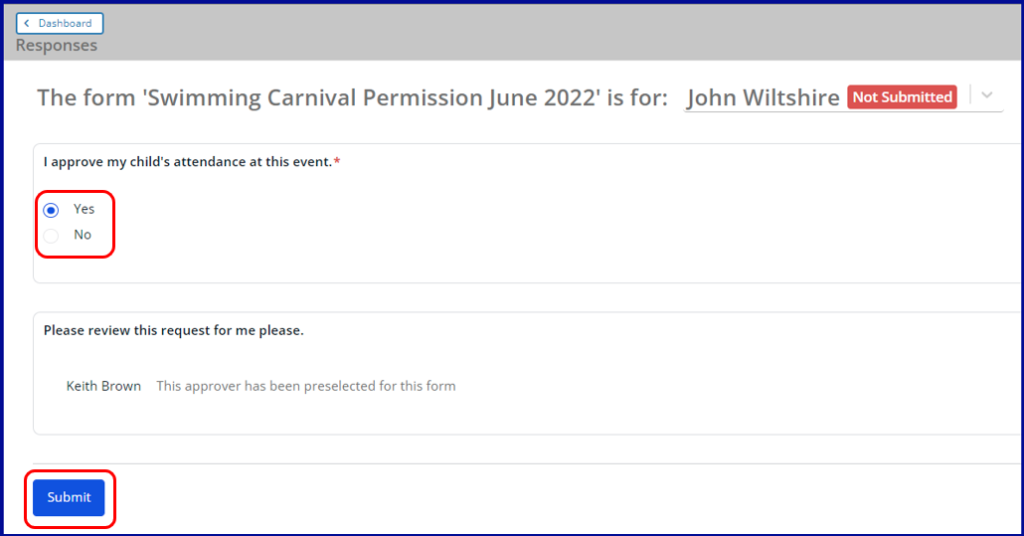
If a Parent or Carer is proxy for multiple Students in the same Form, they can easily complete the forms one after the other because when they press submit, it will automatically flip to the next student’s Form.
If a Student has more than one Parent or Carer, they will all receive the Action Required task, but only one will be able to submit a response. Once the first response is received, the task will disappear from the Action Required section for all other Carers.
Submitting
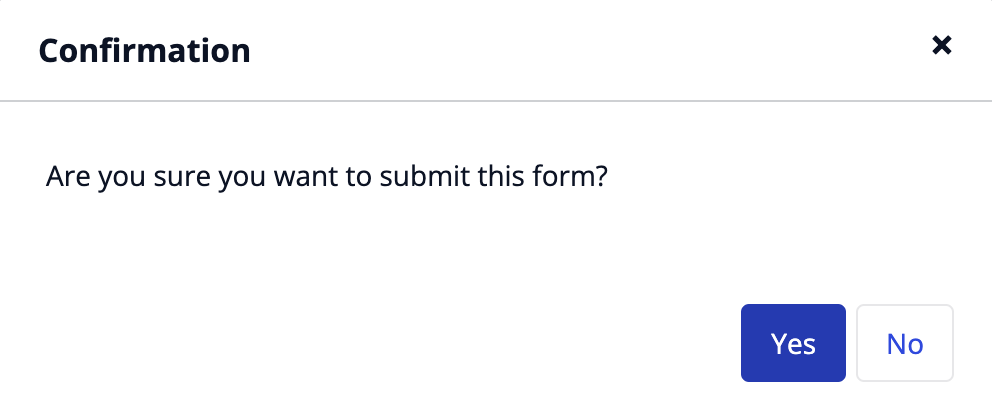
After selecting the Submit button, a confirmation message will appear. Select yes and you will see an information box.
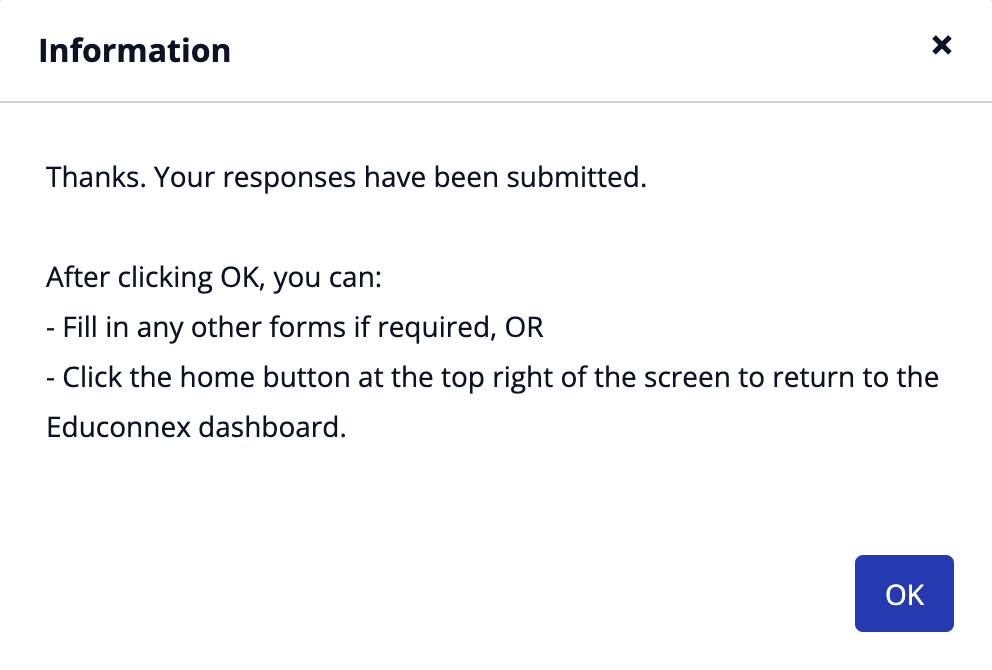
If the Form requires approval, it will move to an Awaiting Approval status. If the Form does not require approval, it will move to a Submitted status.
On the Closing Date, any forms that have not been completed will be marked as Not Submitted and the associated Action Item will be automatically completed and removed from the dashboard.
Responses can’t be changed after they are submitted, unless they required approval and are reopened during the approval process.
