Publishing a Form
Here’s what to do:
1. Watch the video
2. Read the text
3. Select ‘Mark Complete’
Watch the below video for a quick guide on how to publish your form.
hi  …The Publish button can be found on the question page.
Form Statuses
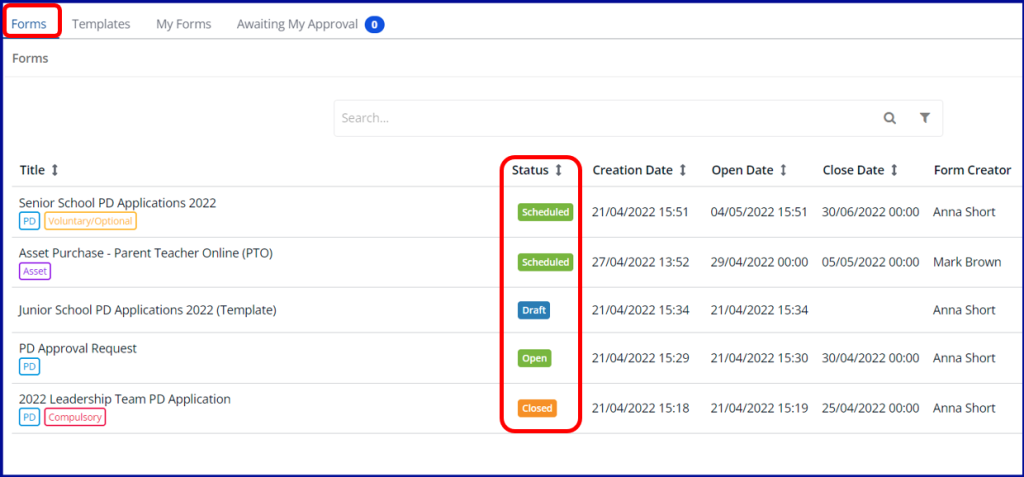
A Form’s Status can be viewed on the Forms screen by users with Forms Administration or Creator permissions.
A Form can have one of four statuses:
Draft – The form is still being worked on, and not scheduled for release
Scheduled – The form will automatically release in the future at the set ‘Open Date’ and time
Open – The form is currently open for the audience to submit responses
Closed – The ‘Close Date’ is now in the past, and no further responses are being accepted
Creating a Template
You also have the option to save your Form as a Template, which will save the Questions and Labels to be easily reused later.
You can do this from the questions screen, by clicking on Save this form as a Template in the top, right corner.

The saved Template can then be found in the Templates tab from the Forms Dashboard. You can edit the Template at any time by clicking Actions then Edit Template.
