Managing Approvals
Here’s what to do:
1. Read the text
2. Select ‘Mark Complete’
Forms can have approval requirements added as a verification step in the form process. A form can then be approved, denied or re-assigned to someone else for approval. For more information on how to add an approval to a form, see Adding Content to Forms.
Approving, Declining or Re-assigning a Form
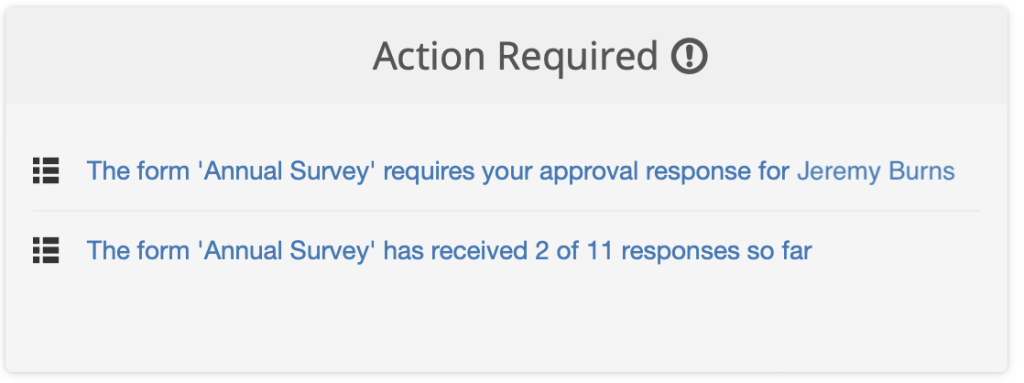
If the Form has an approval requirement, the assigned approver will receive a notification in their Action Required section on the dashboard for each form response that is ready for review.
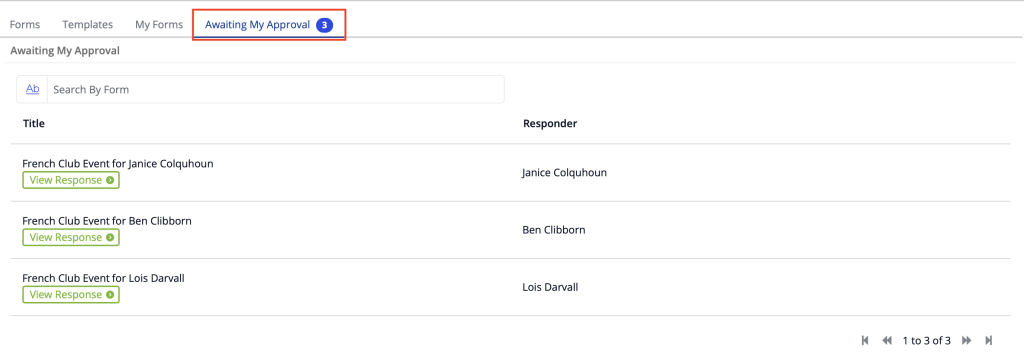
Responses requiring approval can also be found by navigating to the Awaiting My Approval tab within the Forms module.
Click on a response that needs to be reviewed and at the bottom of the screen, below the questions, you will see three buttons: Approve, Decline and Re-assign.
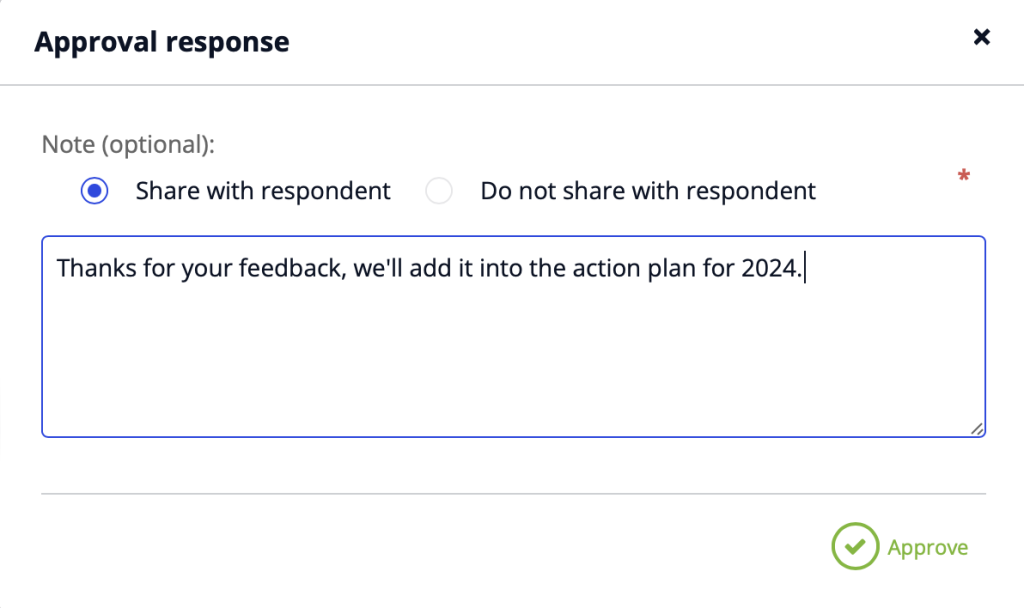
Select the approve button and you will have the option to write a note and share it with the respondent, if relevant.
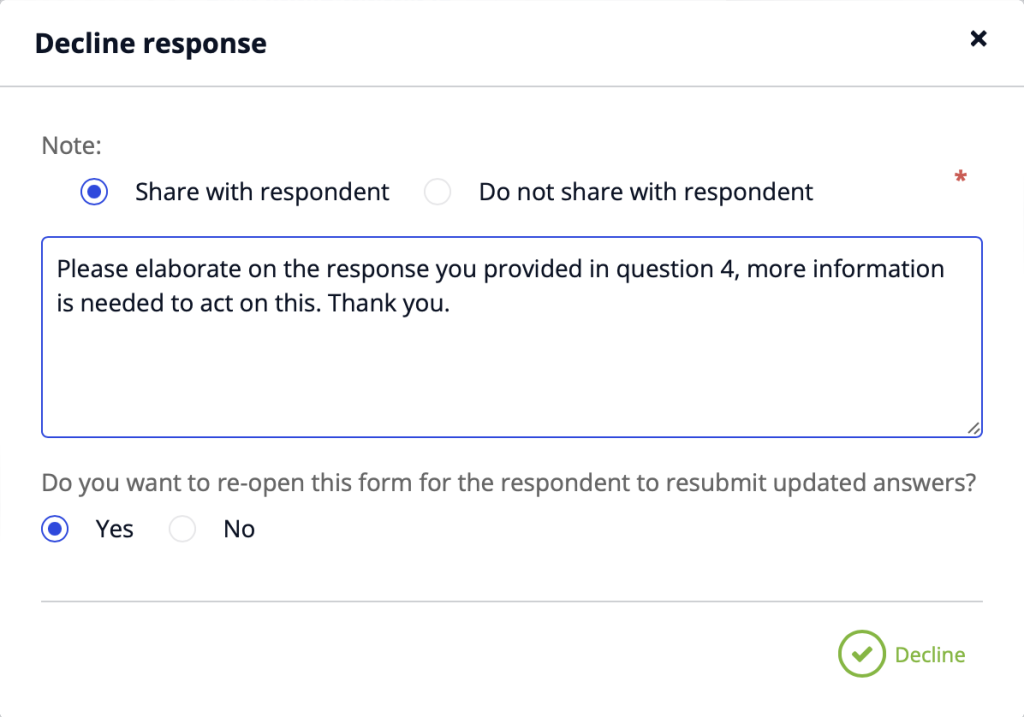
If you decline the form, you have the option to share a note with the respondent, as well as to re-open the form for them to update their responses.
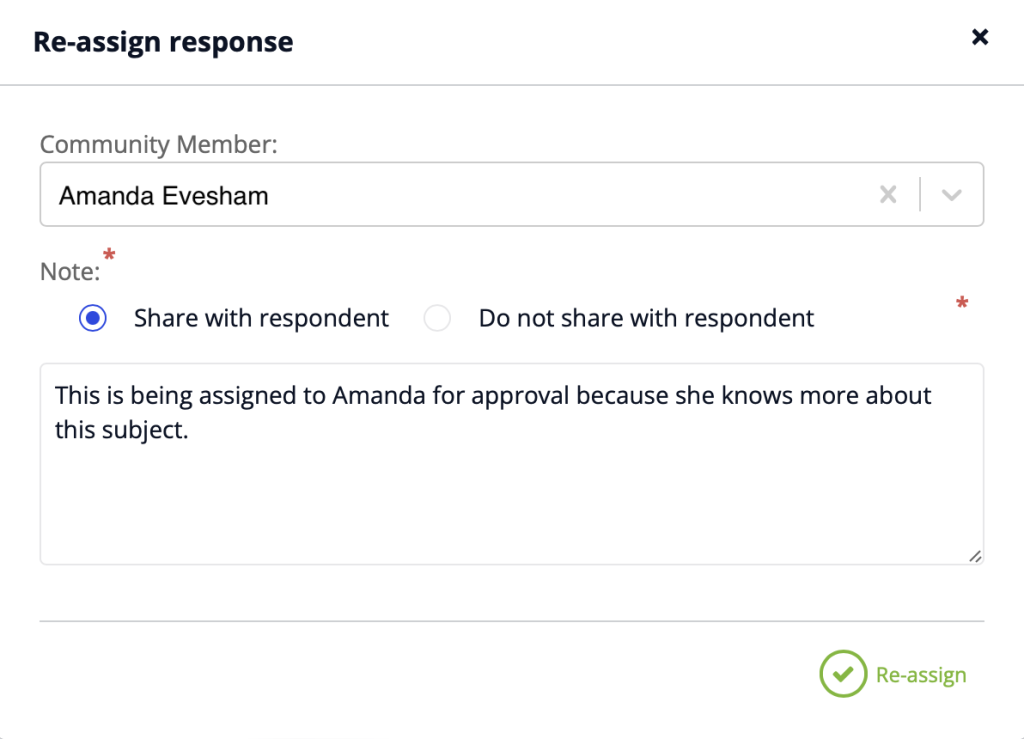
You can re-assign the form to someone else to make the final approval, simply search for their name in the Community Member drop down. You also have the option to send a note to the respondent.
The person who has the response re-assigned to them will see a notification in their Action Required list and can approve, decline or re-assign as they see fit.
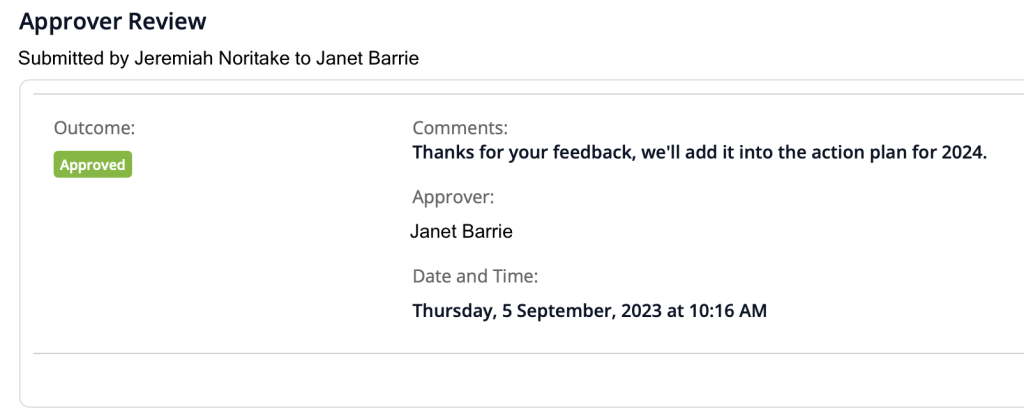
An audit trail of each approval, decline, re-assignment and comment can be seen in the individual response view. This can be accessed from within Forms or in the responding Community Member’s profile. The respondent can also see this in their profile or from the Forms module.