Adding Content to Forms
Here’s what to do:
1. Read the text
2. Select ‘Mark Complete’
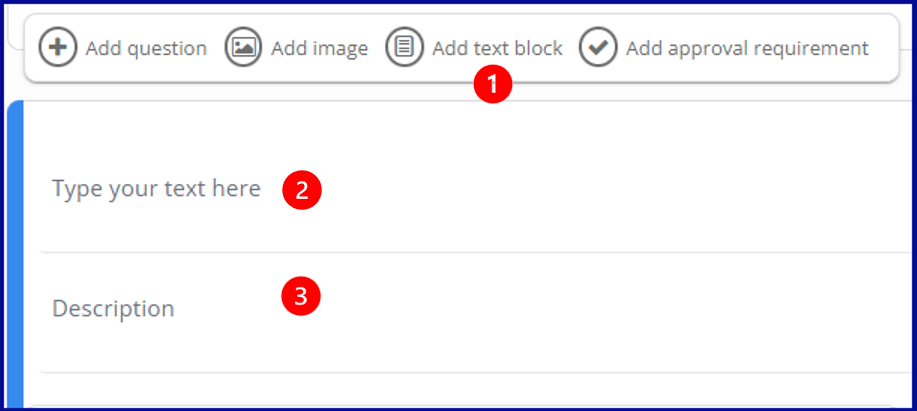
There are many different ways you can present your content in Forms, including adding images, information sections, dropdown boxes, check boxes, multiple choice, short response, long response, file uploads and approvals. Here is the toolbar you will see on the left of your screen when creating your form:

Adding a Question
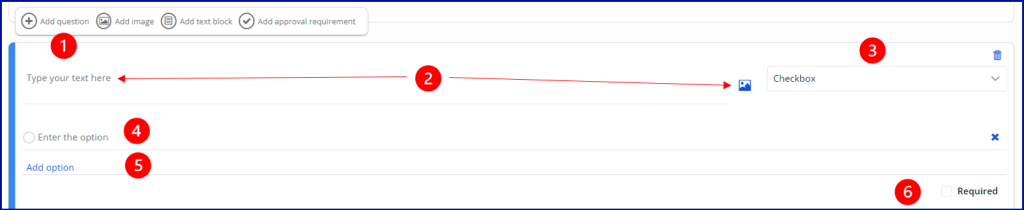
1. Select ‘Add question’
2. Add your question and an optional image
3. Select the response type for the question, choosing from:
Checkbox: Select one of the pre-defined answers
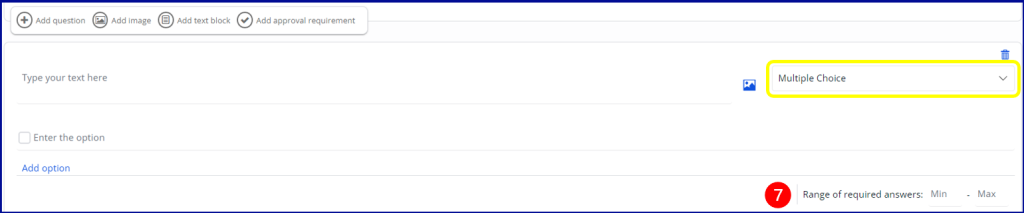
Multiple Choice: Select one or more pre-defined answers
Dropdown: Select one of the pre-defined answers
Short Answer: Type a short response in freeform text
Long Answer: Type a paragraph of freeform text
File Upload: The user can upload files from their computer
Date: Select a date using a date picker
4. Depending on the Question type you add, you will be prompted to customise your content, for example, provide the possible answers for a Checkbox question.
5. Click Add Option to add more response options.
6. Tick the box to show if a response is Required, otherwise it will be optional.
7. For Multiple Choice or File Upload questions, you will need add a minimum number of responses if the question is mandatory. You can also set a maximum for these two types of questions to limit the response.
Repeat for each additional question.
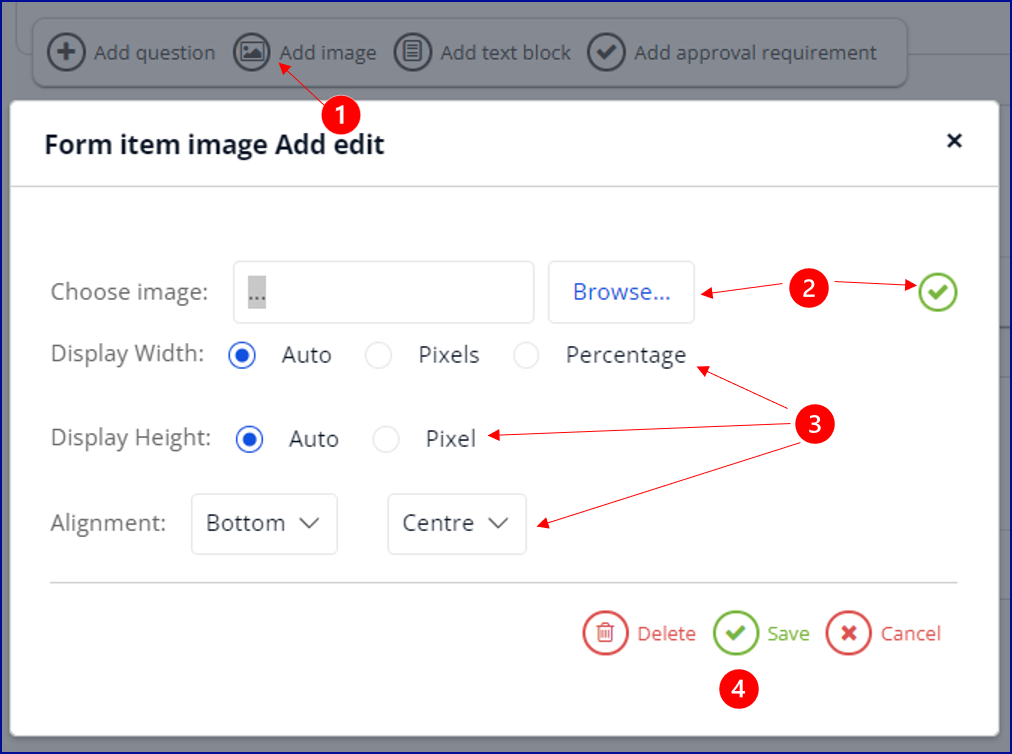
Adding an Image
1. Select Add Image
2. Browse and attach the your Image, and click Save
3. Customise the Image size, and alignment
4. Save the Image settings
Adding a Text Block
A Text Block is a section of written information, such as instructions, that the form responder can read, but will not be able to interact with.
- Select Add Text Block
- Type, or copy your text into the field
- Add a Description, if desired
Reordering the Content Blocks
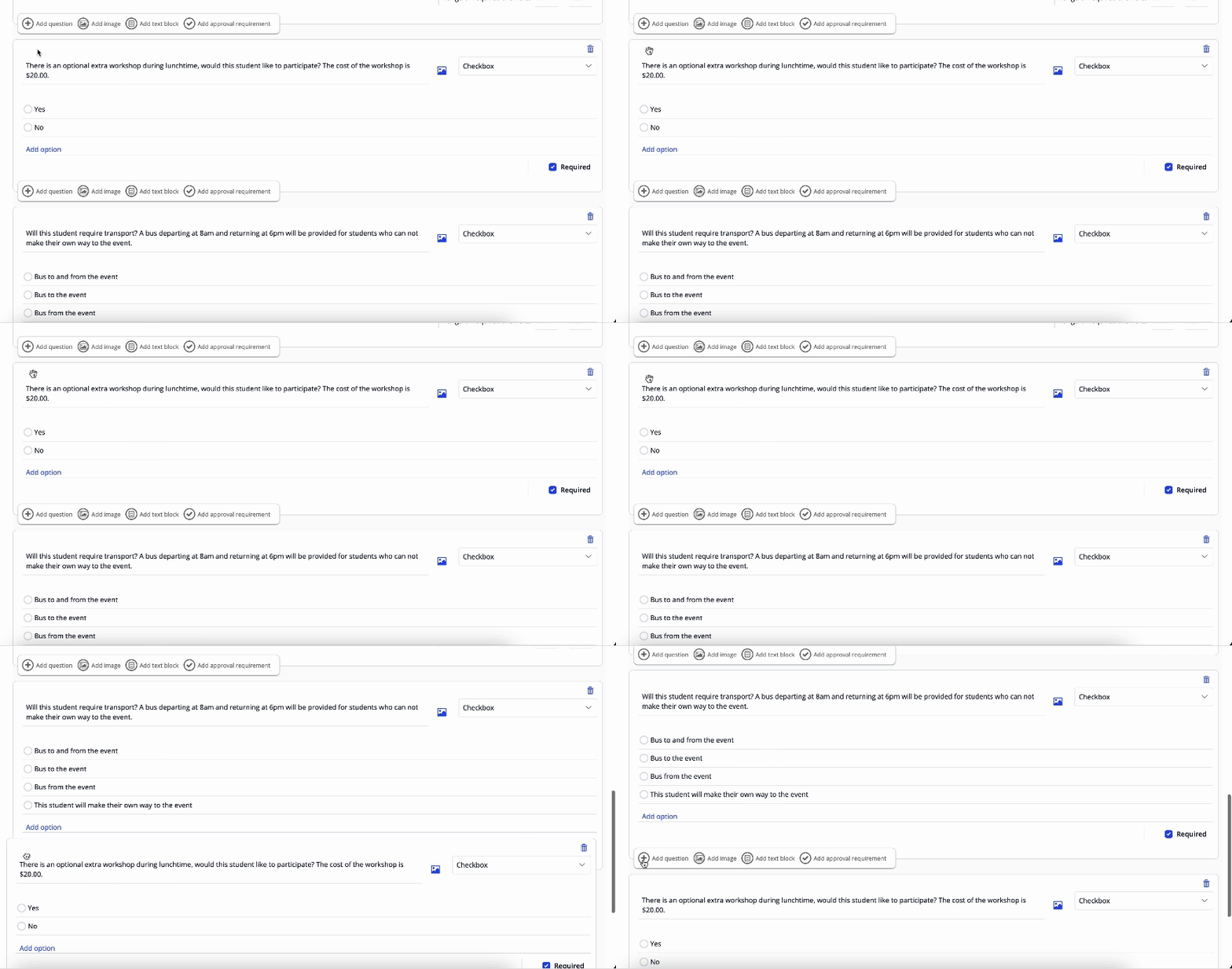
Components added to a form can be reordered by simply dragging and dropping to the new location.
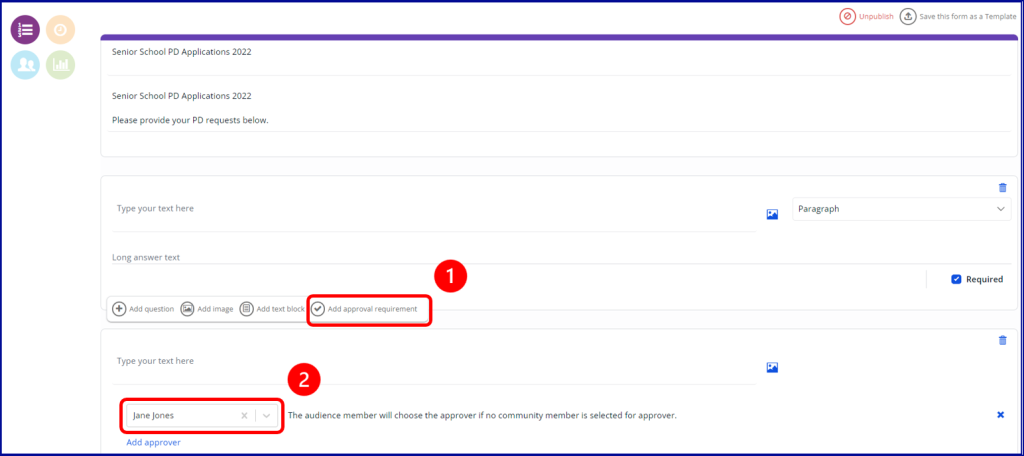
Adding a Form Approver
You can assign up to two Approvers to a Form. When two Approvers are assigned, both will need to approve the form for it to be complete. For more information on how Approvals work, see the Managing Approvals module.
- Select the Add approval requirement button.
- Search for the Staff Member and select their name in the dropdown list.
- Select a second Approver by repeating the same process.